Participation Instructions For Attendees
Due to the COVID-19 pandemic, the APNOMS 2020 conference will take place virtually using Zoom-Webinar platform.
| Setting up Zoom Webinar |
| It is recommended to download the Mobile or PC Zoom Application but it is not mandatory as the Webinar session could be joined via common browsers. |
- For Android Phones: here
- For iOS phones: here
- For PC, Blackberry and Windows Phone: you will be prompted to install the application the first time you enter a session.
|
| Instructions for Joining the ZOOM Webinar Room: |
| It is recommended to download the Mobile or PC Zoom Application but it is not mandatory as the Webinar session could be joined via common browsers. |
- The attendees are requested to log into the Virtual Track room 5 min before the session time.
- The Virtual Track room can be reached from either APNOMS 2020 program webpage or through the sent email.
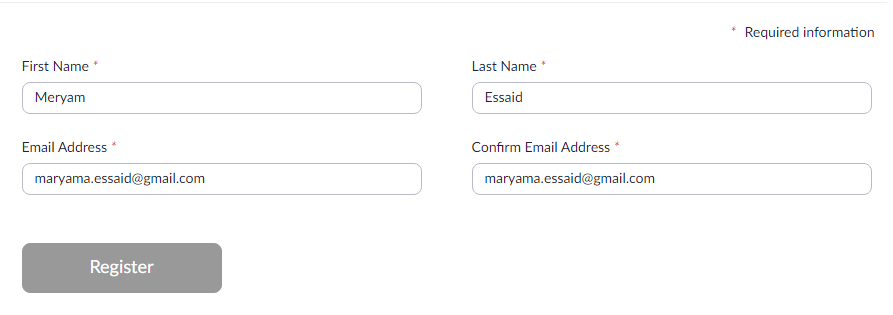
- To join the Virtual Track room, Attendees must Enter their information as processed during the registration:
- - First Name:
- - Last Name:
- - Email Address:
- - Confirm Email Address:
-
| For Example |
- - First Name: Meryam
- - Last Name: Essaid
- - Email Address: apnoms2020@gmail.com
- - Confirm Email Address: apnoms2020@gmail.com
|
| ↓ |
|
|
-
- Once logged in, you will be given the “attendee” role. Your microphone and camera will be disabled.
- To ask questions to the presenter, please use the Q&A Window. To access this window, click on the Q&A icon located at the bottom of the Zoom Webinar control panel.
- If the attendee need to refer to the presentation, please indicate clearly the slide number of the presentation or note down the time of the relevant content.
- When the presentation is finished, the Session Chair will open the Q&A session and will read any questions made to the speaker in the Q&A Window according to the time they were first submitted..
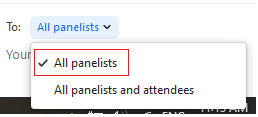
- To further discussion, use the Chat window and choose to send your comments to “All panelists”, so that both the speaker and session chair can see your comments (see the figure below), for asking questions use ONLY the Q&A Window.
|
If you have any issues joining the Virtual Conference Rooms, please contact us via email at: apnoms2020@gmail.com