Participation Instructions For Speakers
Registered authors(Technical, Poster, Innovation), Keynote, Special and Tutorial speakers are required to participate live in the Q&A session to be held immediately after their presentation. Questions from the attendees will be asked through the Zoom Webinar Q&A window and will be read out by the Session Chair.
| Instructions for Joining the ZOOM Webinar Room: |
| Please connect to your session in Virtual Track room at least 10 minutes before the start of the session. |
- The Virtual Tracks can be reached from either APNOMS 2020 program webpage or through the sent email.
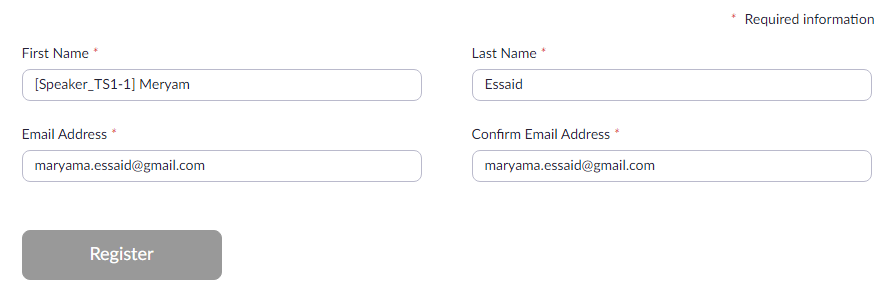
- Speakers need to use the same email account used to register to the conference when logging into the virtual room. Speakers are required to register by providing the followings:
- - First Name: [The role_session ID-presentation ID] Speaker's First name
- - Last Name:
- - Email Address:
- - Confirm Email Address:
-
| For Example |
- - First Name: [Speaker_TS1-1] Meryam
- - Last Name: Essaid
- - Email Address: apnoms2020@gmail.com
- - Confirm Email Address: apnoms2020@gmail.com
|
| ↓ |
 |
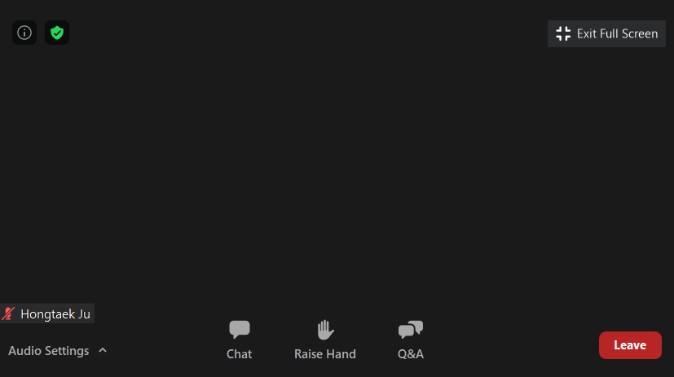
- Once logged in, speakers will see the main dialog box as shown below:
- Once in the room, Contact the Session Host using the Chat window asking him/her to Promote the role to “Panelist”,
The sent message should contain: [The role_session ID-presentation ID] Speaker’s full name
| For Example: [Speaker_TS1-1] Meryam Essaid |
- Once Promoted to “Panelist”, you will be able to activate your microphone and camera when it’s your turn to present. Please keep your microphone muted whenever other speakers are presenting or a video presentation is being played.
- For all technical talks [Technical, Poster, Innovation, Keynote, Special and Tutorial] the Session Host in collaboration with the Session Chair will play the video presentation at the scheduled time.
|
| Taking Part in a Zoom Webinar Virtual Session [Live Streaming Talks]: |
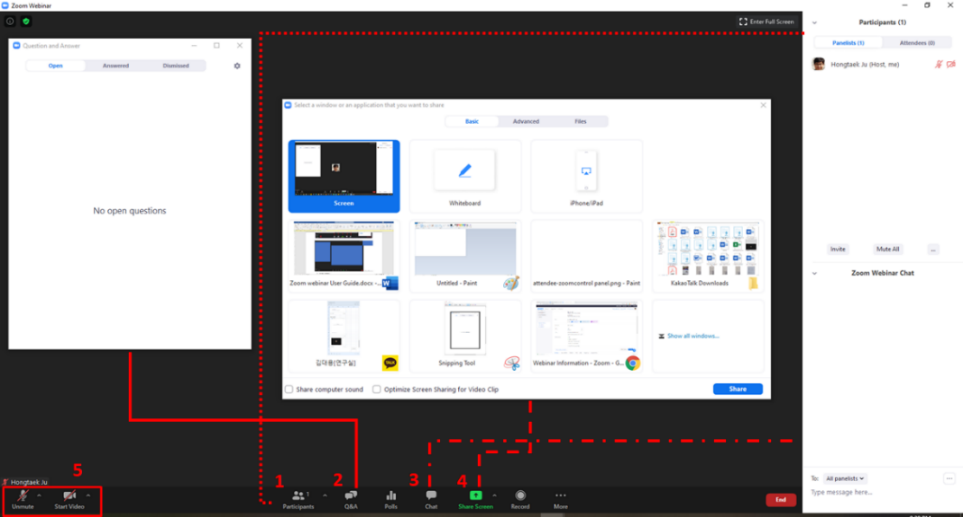
- Once promoted to “Panelist”, speakers will see the main dialog box as shown below:
| Window |
Description |
- Participant
|
This opens up the Participants window so you can see who is on the webinar. |
- Q&A
|
This opens up the Question and Answer window. |
- Chat
|
Access the chat window to chat with the host, the other panelists or all attendees. |
- Share Screen
|
Click on this to start a screen share. You will be able to select the desktop or application you want to share. |
- Microphone and Camera
|
Mute/unmute |
This allows you to mute and unmute your microphone. |
| Start/Stop Video |
This allows you to start and stop your own video |
|
| NOTE: The controls will auto-hide, so you may have to ‘mouse-over’ the bottom of your screen to get them to show |
- Screen Sharing:
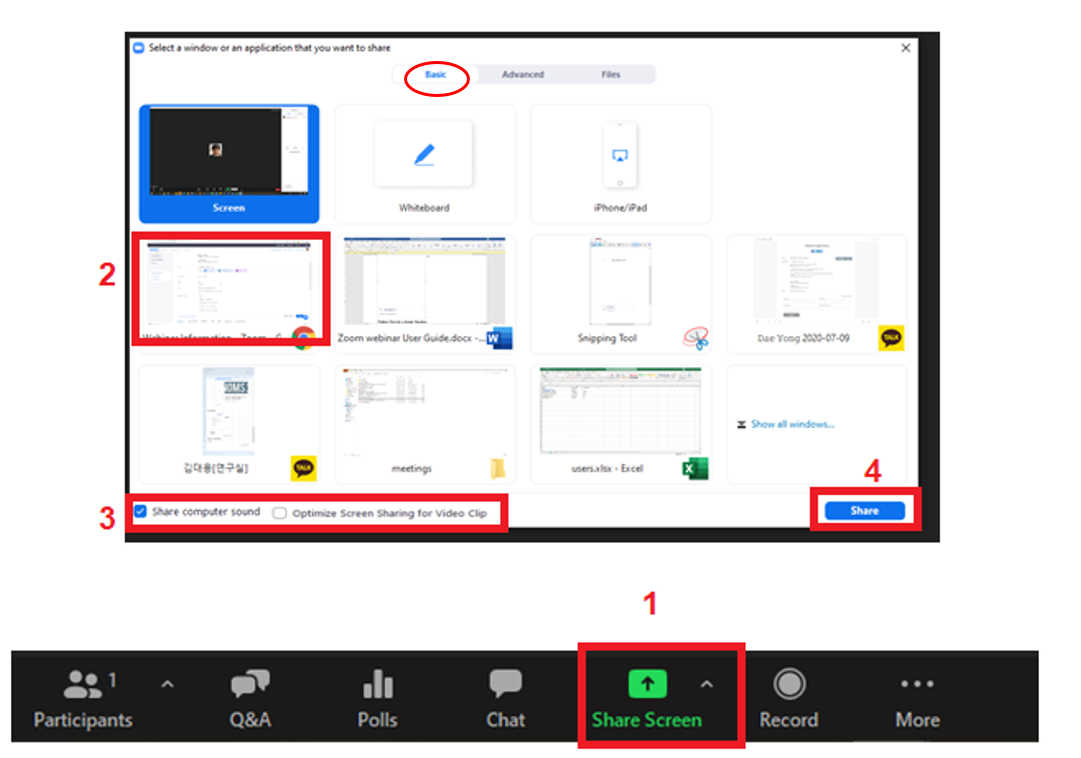
- Click on the Share icon, either in the main window or in the control panel. [If asked, choose “basic” screen sharing]
- Select the PowerPoint presentation you wish to display (NOT the “screen” option), this makes sure participants can only see your presentation, nothing else that may be going on with your computer during the presentation. Your slide deck will then come up as your main screen.
- When you are screen sharing, the controls will appear in a moveable bar. It is typically at the top of your screen, but you can drag it around as needed
* You may have to “mouse over/hover” over the lower green and red section to have the other options show up for you – the controls auto-hide when you are not using them.
|
- - Click on “more” and choose ‘Chat”, you can also use Ctrl+H. The chat window will show up to the right of your presentation
- - If you want to see the question, click on Q&A icon.
- - If you want to see the participants, click on that icon, it will also open to the right. This allows you to see participants and know if any are raising their hand.
|
If you have any issues joining the Virtual Conference Rooms, please contact us via email at: apnoms2020@gmail.com